



Restoration / Guides / Tech
First day · Tech
Tech: your first day.
Open the loss, do what the green button says, and the day is ready to sign.
- 01
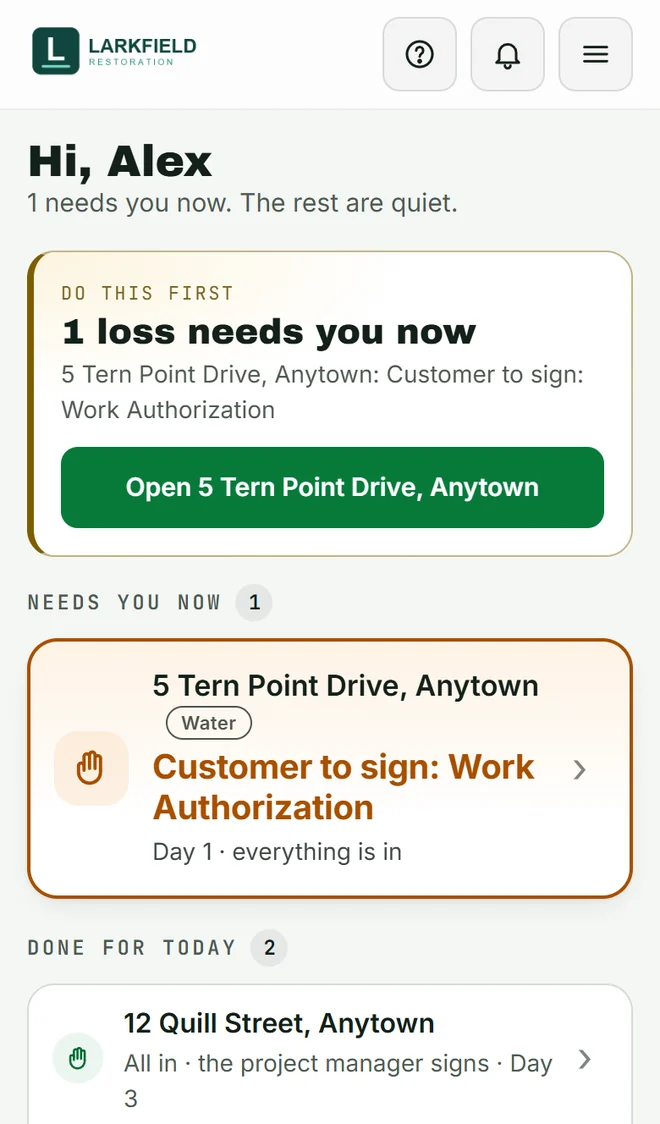
Open your loss
Your office sends you a link. Open it on your phone and you’re in. Home shows your open losses; tap the one you’re on.
- 02
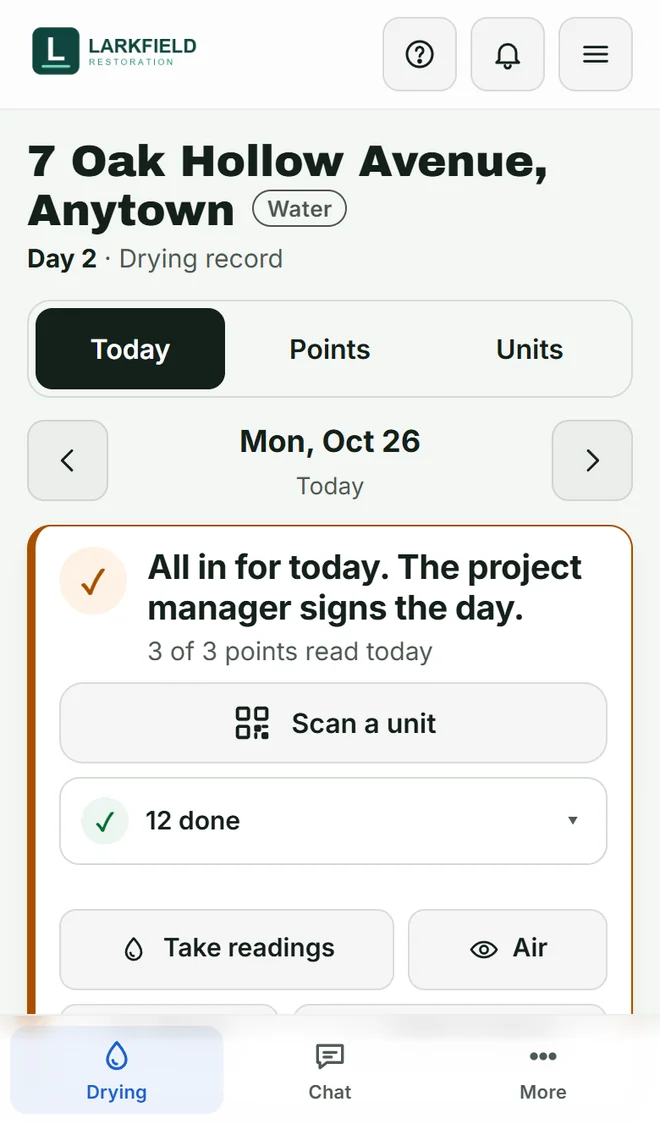
See what today needs
The box at the top says what is left before the day can be signed. The green button at the bottom always shows the next thing, like Take readings, 3 left.
- 03
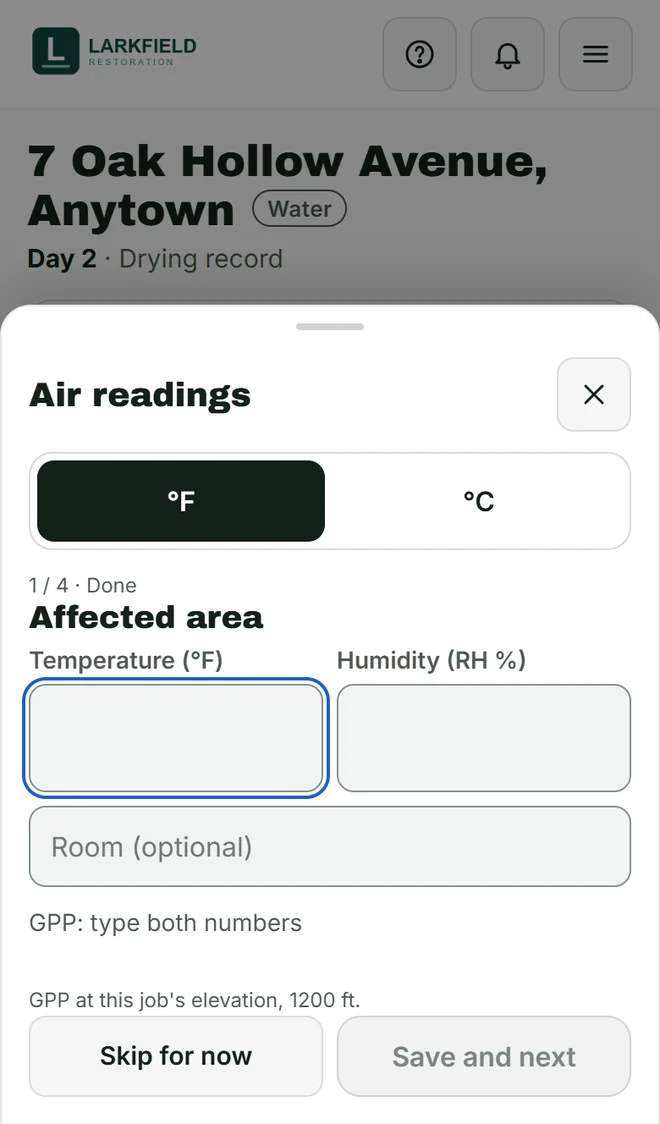
Take the readings
Tap the green button. Each point comes up one at a time: type the number and tap Save and next. Air readings work the same way, and the GPP shows right away.
- 04
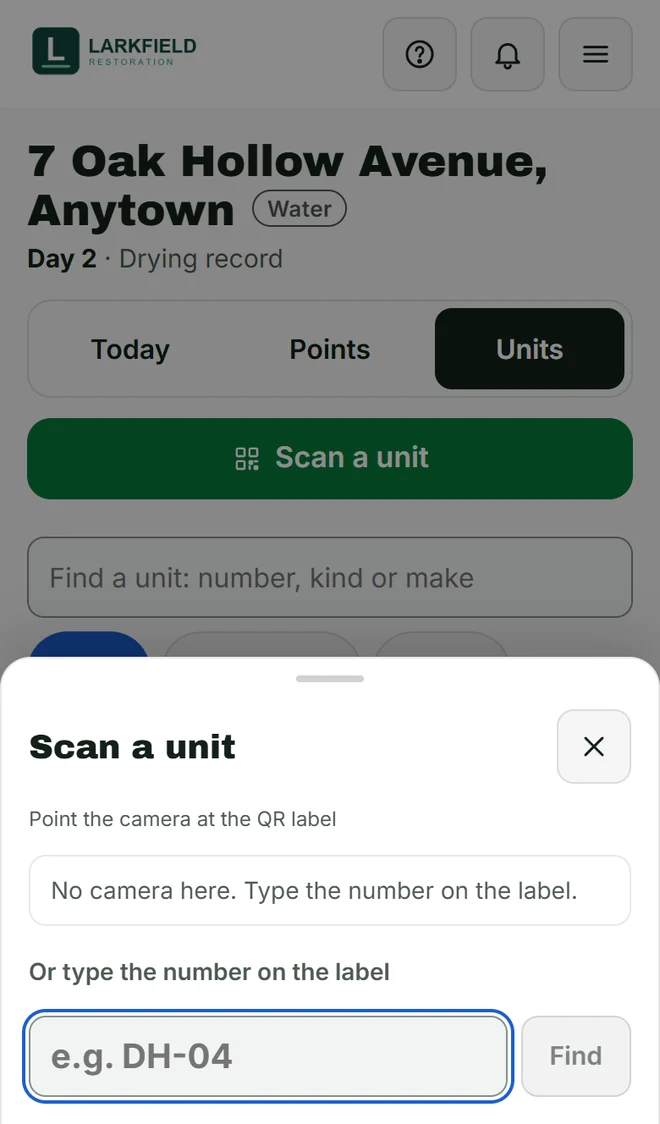
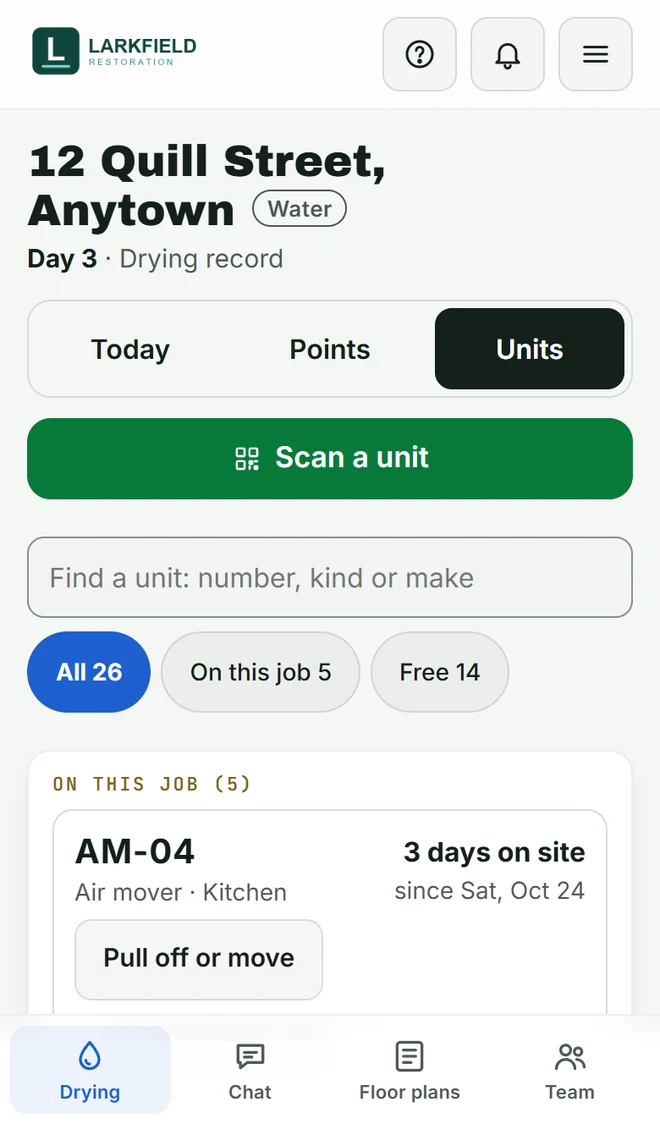
Scan the units
Tap Scan and point the camera at the unit’s label. Not reading? Type the number on the label and tap Find.
- 05
Move or pull a unit
The Units tab lists every unit on the job and how long it has been there. Tap Pull off or move when a unit leaves the room.
- 06
All in
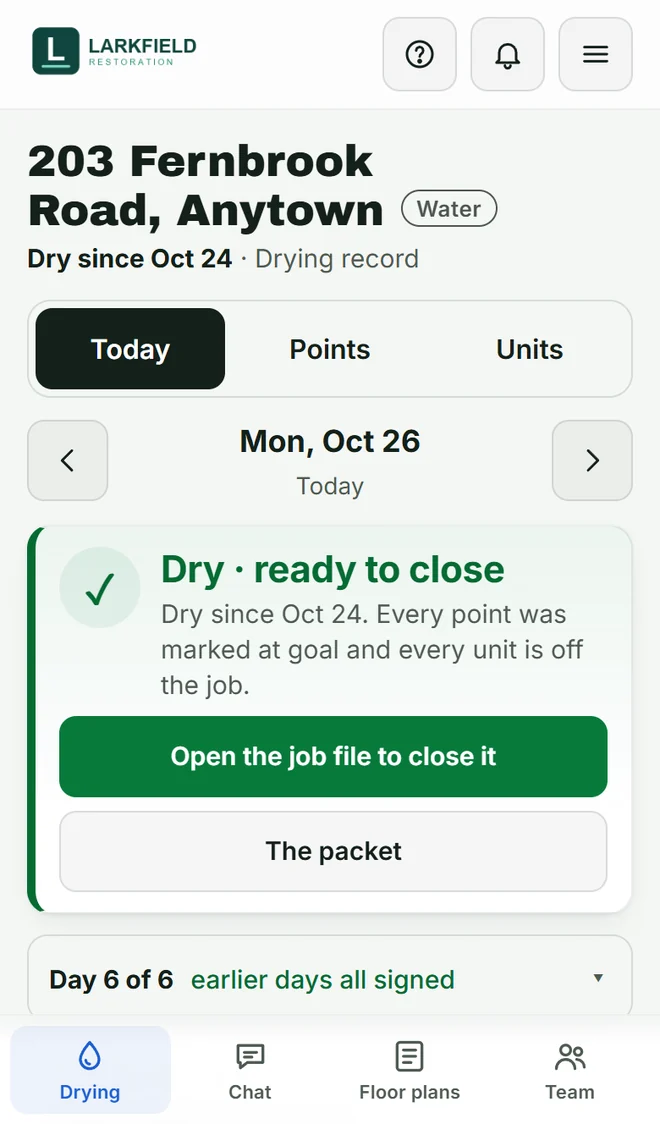
Can’t get a reading? Write down why, for example the owner had the room locked. When the box turns green and says Everything’s in. Ready to sign., your project manager signs the day.
No signal?
Keep going. Readings and photos wait on your phone and send when the signal is back and Sightgrid is open.