



Restoration / Guides / Owner
First day · Owner
Owner: your first day.
Set up your company once, bring your people in, then run every office from one screen.
- 01
Set up your company
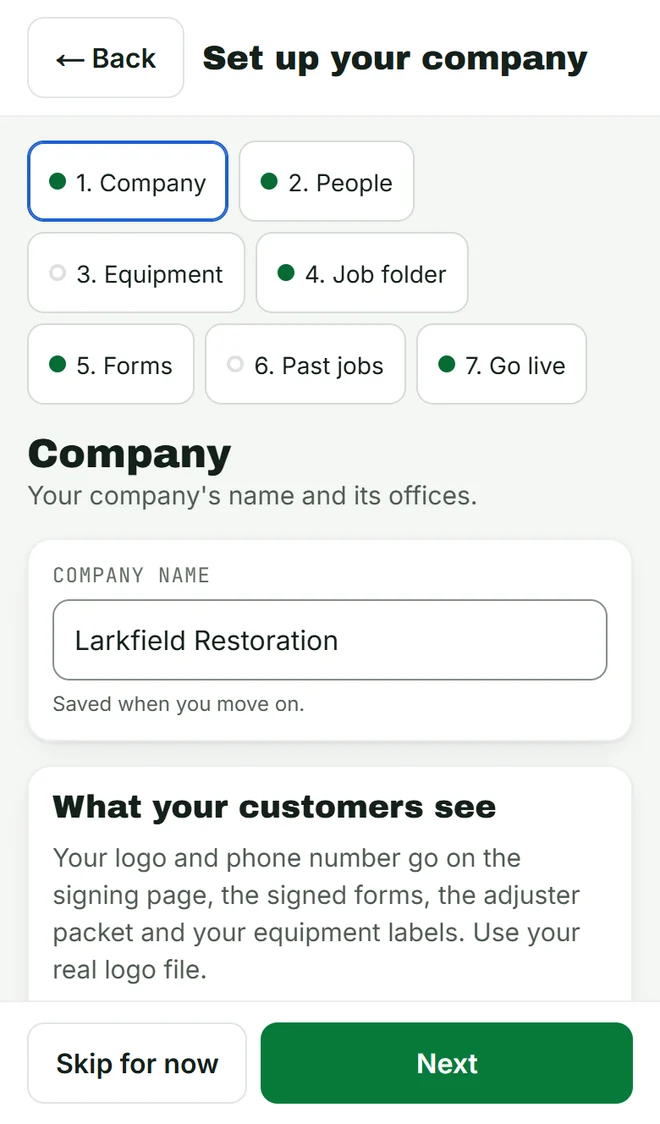
The first time you sign in, Sightgrid offers the setup. Type your company’s name and add your offices. Under What kind of work does your company do? tap Restoration, then Yes, set up for restoration.
Your roles, kinds of loss and job folder come ready. You can change them later.
- 02
Add your logo and phone
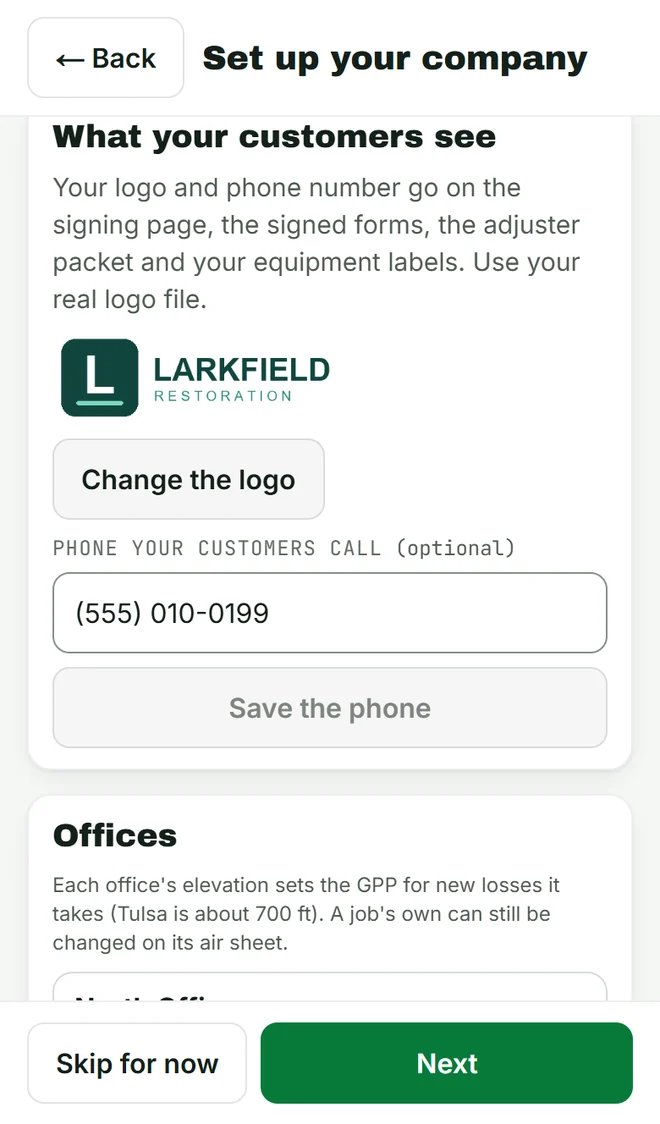
Under What your customers see, tap Change the logo and pick your real logo file. Type the phone number your customers call and tap Save the phone.
They go on the signing pages, the signed forms, the adjuster’s packet and your equipment labels.
- 03
People, equipment, folder and forms
Add your people and their roles. Bring your equipment list. Check the job folder and the forms; have your lawyer read the forms before a customer signs.
Not ready for one? Tap Skip for now and come back to it.
- 04
Go live
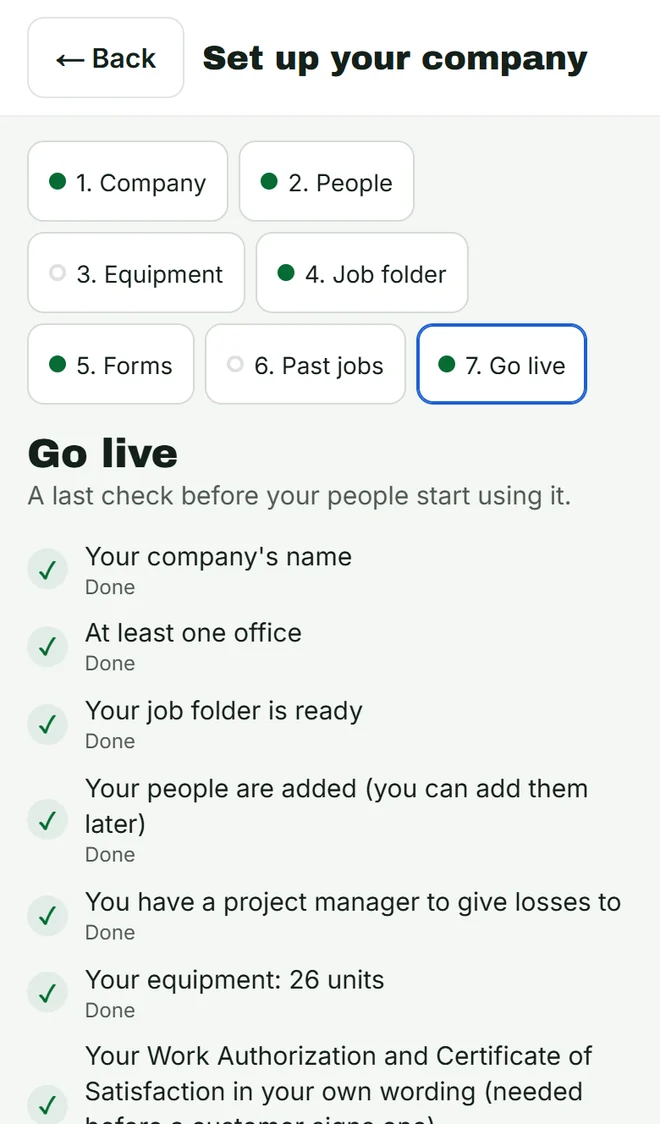
The last step shows what is done. Anything you skipped waits under Skipped: add later.
- 05
Bring your people in
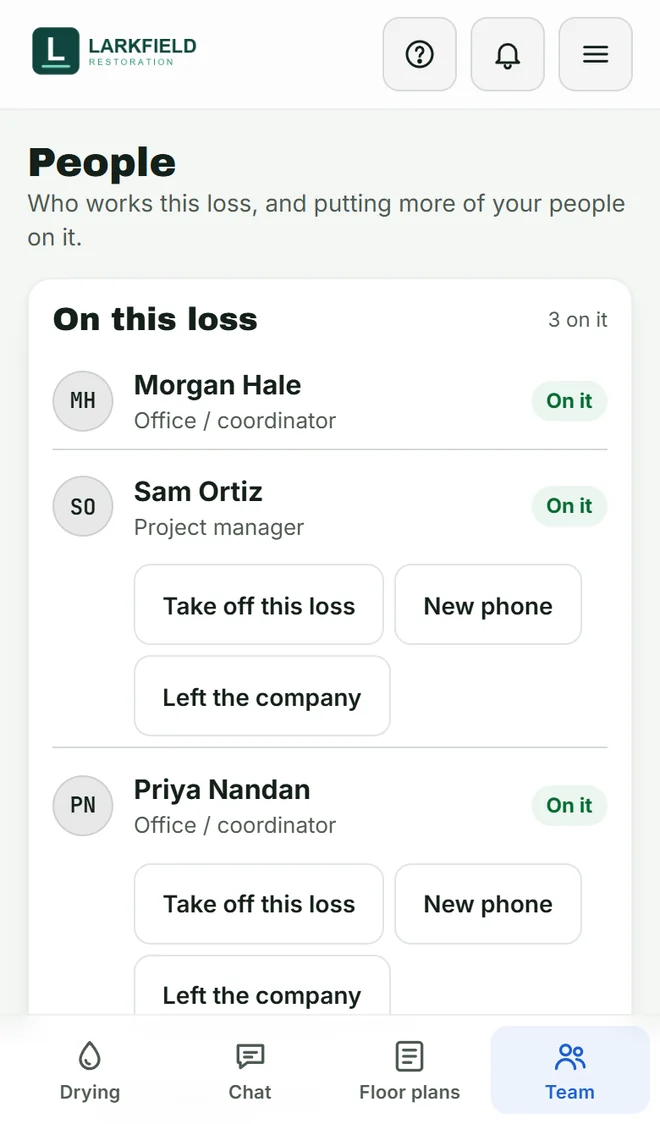
Open Team and tap Add a person. Pick their role and send them their link. They open it on their phone and they’re in.
- 06
Choose who can do what
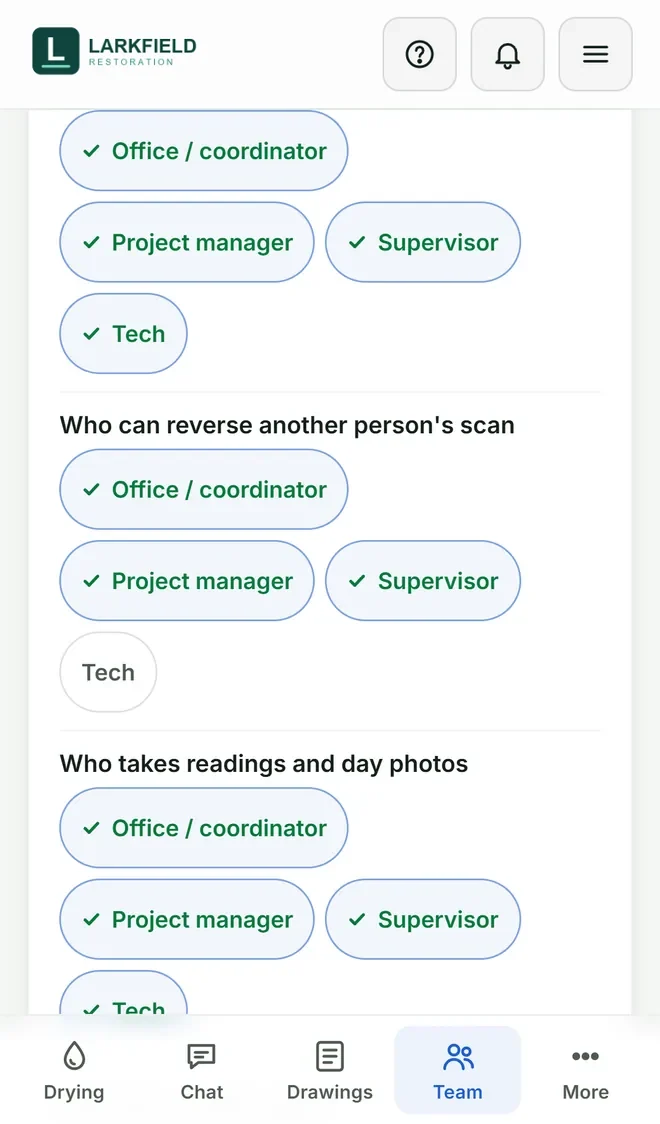
Open Company settings. Every rule starts with a sensible default. Tap a role to add it or take it away, for example who can reverse another person’s scan.
- 07
Open the all-offices wall
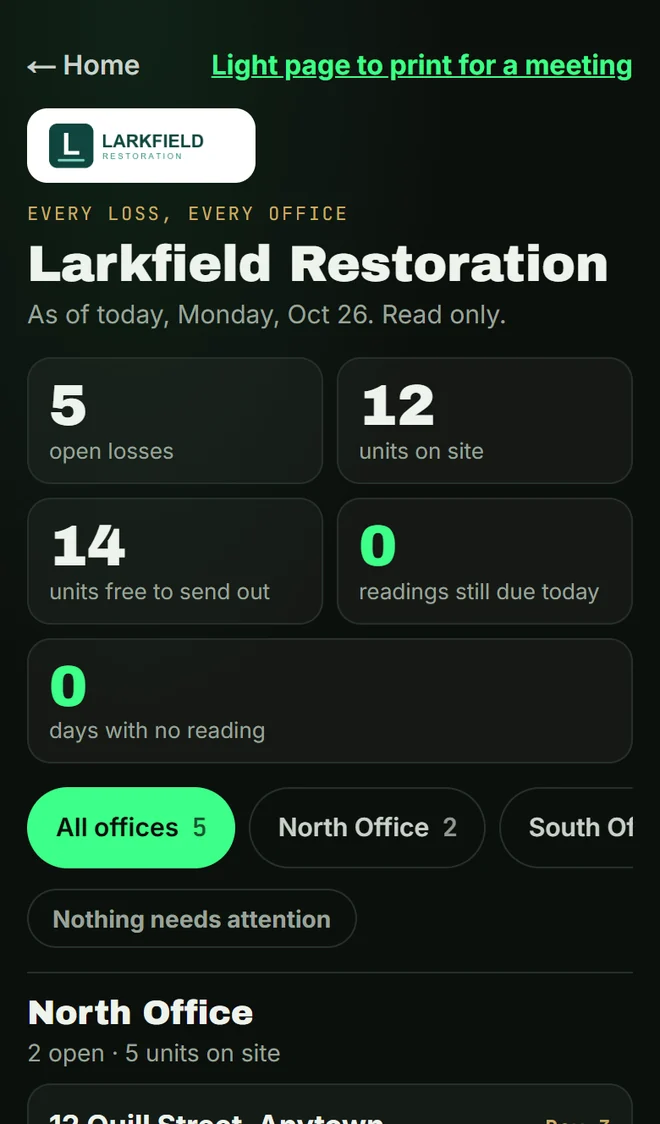
On your Home, tap Open the all-offices wall. Every open loss in every office, with what needs you first. Tap an office to see only its losses.
Labels for your units
Print labels for your units from Sightgrid and stick one on each unit. Your crew scans them on site to put a unit on a job, move it or pull it off.